OAK Viewer
OAK Viewer is a GUI application that allows you to easily evaluate the camera by visualizing its output in real-time.Download
Linux
macOS
Windows
Linux
Debian packages are available for Ubuntu 24.04 / 22.04, supporting x86_64 (AMD64) architecture.
Features
Local Viewer and OAK4 Default App
Please note that all features of Viewer work only in Chrome. The local version includes a bundled Chrome browser. However, the web version can be opened in any browser, albeit with some limitations. All browsers should support RAW streams. Encoded streams and features based on them are supported only in Chrome because they require the full set of the WebCodecs API, which currently only Chrome provides with high quality and performance.
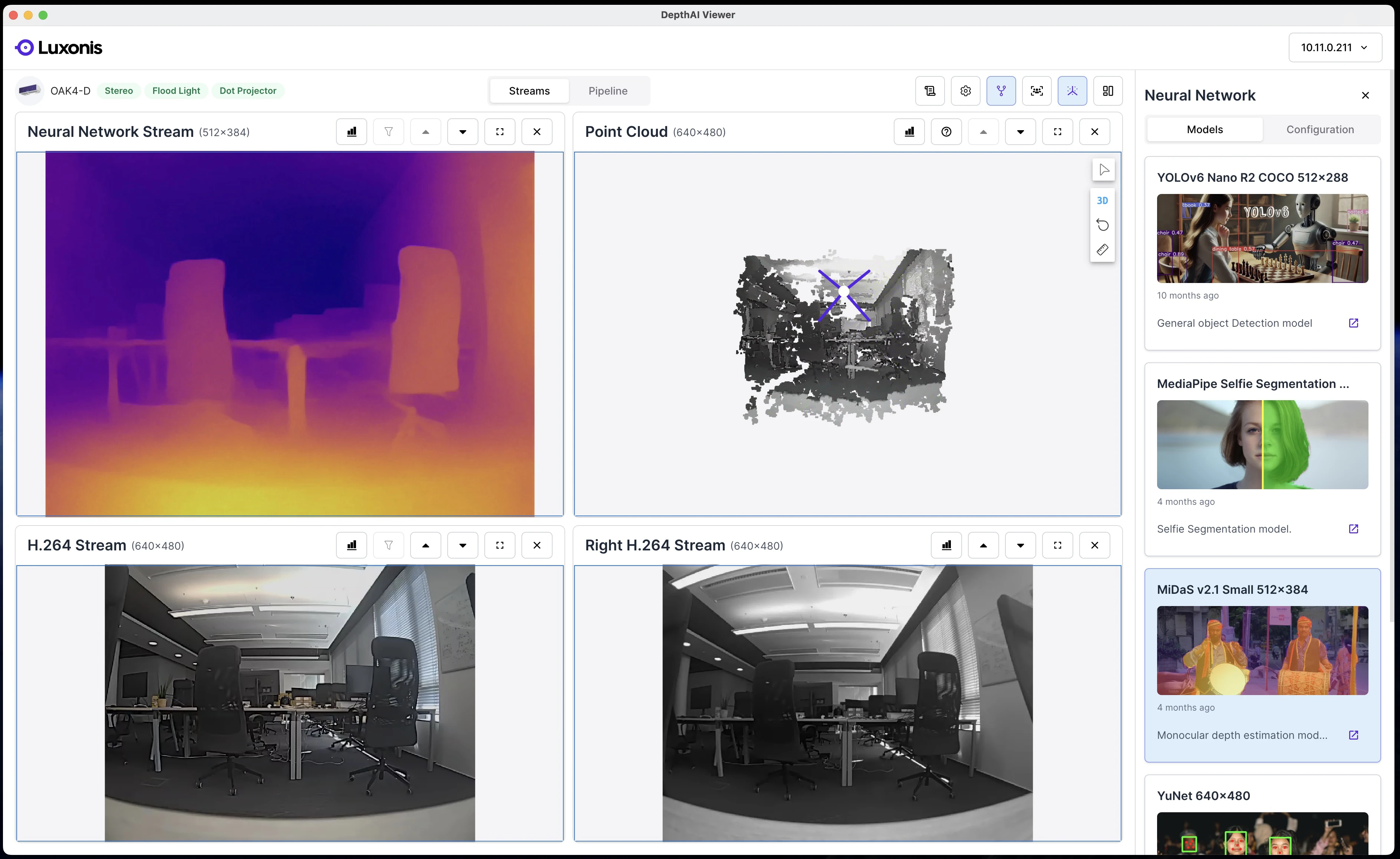 The local version uses WebSocket for communication between the frontend and backend, and therefore it is limited only by the speed of the local network. The default app supports two modes. The first mode involves a direct connection to the device, typically using https://device-IP:9000. The exact URL can be found in the application logs. A self-signed certificate is required for the encoded streams to function properly. If multiple applications are running, the second port 9001 is used. It is recommended to verify the exact URL in the application logs.The second option to open the Viewer as a default app is through remote access. Internally, WebRTC is used, and therefore the theoretical bandwidth throughput supported is around 400 Mbps locally. It can be lower when the connection is over the internet, depending on actual connectivity. In this case, the URL will look like this: https://viewer.luxonis.app/1.2.1/?t=xxxx. The specific URL can be found in the application logs, or the UI can be opened remotely via the Hub, where the correct URL is available.
Please note that this URL is valid only for 15 minutes and is then regenerated. It is not necessary to reopen the UI, as it will automatically refresh, but it is not possible to bookmark this URL.
Profiles
You can choose from three predefined profiles. Each profile uses its own DepthAI pipeline:- Vision 3D: Focused on output from the main camera and point clouds.
- Vision AI: Focused on outputs from neural network (NN) models and their annotations.
- Advanced: Allows in‑depth configuration of all features and access to calibration data.
Streams and Pipeline
There are two main tabs available in the Viewer. The first one is Streams. It displays a predefined set of streams that the device can provide. These streams depend on the supported features, such as the main RGB camera, left/right cameras (if available), disparity stream, temperature, etc. Additionally, there is a stream from the selected NN model. These models are loaded from the Luxonis Models ZOO. If a YOLO model is selected, annotations can be displayed on the RGB camera stream, and so on. Among the streams, there is also the disparity and point cloud, which are computed on the frontend based on depth and RGB data to be bandwidth-efficient. All these features offer simple configuration options.The second tab is Pipeline. This tab shows the active pipeline that the Viewer backend has created in DepthAI V3. It provides a visual representation of all nodes, their parameters, and connections.Streams features in Advanced profile
The following actions are available on the Streams screen:- Logs: Opens the logs panel, which includes any errors or warnings from DepthAI and the Viewer backend.
- Configuration: Allows configuration of sensors, stereo depth, and advanced settings.
- Neural Network: Displays a list of NN models from the OAK ZOO that can be quickly tested and configured.
- Streams: Shows a list of all streams available on the device based on the current configuration.
- Point Cloud: Displays a real-time point cloud based on depth data and colored by the RGB camera.
- Panel Layout: Provides a quick way to set the layout of visible panels.
Stream panel
Every stream panel has a unique name, resolution, and several performance metrics. It includes the following FPS metrics:- Camera: The FPS requested based on the configuration.
- Network: The FPS delivered over the network.
- Decoding: The FPS decoded on the client side.
- Rendering: The FPS rendered on the client side.
- Annotations: The FPS of annotations delivered over the network to the client side.